Xray routing rules from any website: Xray-core, 3X-UI, v2rayN
Updated · NetRoute version 4.1.4
Xray directs connections by routing.rules: lists of domains and addresses plus the tag of an outbound. NetRoute builds such rules from a website in two variants: a fragment of an Xray-core config — which also fits the 3X-UI panel, where the Xray config is edited as JSON — and a file for importing rules into v2rayN.
What is inside the file
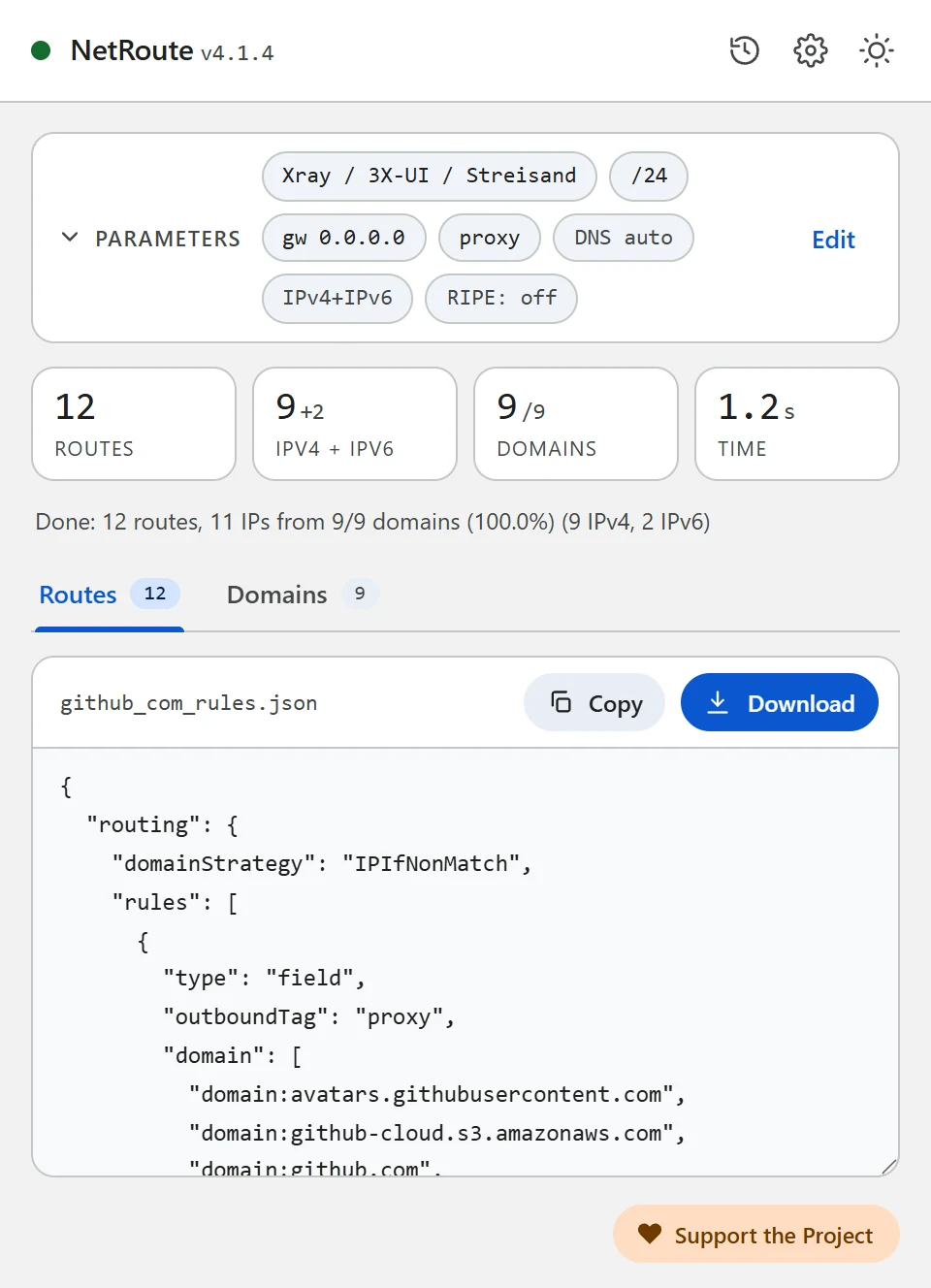
The “Xray / 3X-UI / Streisand” format is a fragment of an Xray-core config with a routing section. Domains and networks are two rules, each with its own list and a shared outboundTag:
{
  "routing": {
    "domainStrategy": "IPIfNonMatch",
    "rules": [
      { "type": "field", "outboundTag": "proxy", "domain": ["domain:github.com", "domain:githubusercontent.com"] },
      { "type": "field", "outboundTag": "proxy", "ip": ["140.82.112.0/20", "185.199.108.0/22", "2606:50c0::/32"] }
    ]
  }
}domain:name— per the Xray documentation the domain itself and its subdomains. The list is folded: whenapi.github.comandgithub.comare found, onlygithub.comstays;www.is dropped. Every domain of the scan is included, also those that did not resolve to an IP.ip— addresses in CIDR form; the same aggregated networks NetRoute emits as router routes, IPv4 and IPv6.outboundTag— the tag of the outbound from the Device field in NetRoute;proxyby default.domainStrategy: IPIfNonMatch— per the Xray documentation a domain is resolved to an address only when no rule matched by name; Xray’s own default isAsIs, no resolving.
The “v2rayN (rules import)” format is an array of rules in the shape v2rayN imports from the clipboard or a file (as in the v2rayCustomRoutingList repository of the v2rayN author):
[
  { "port": "", "outboundTag": "proxy", "domain": ["domain:github.com", "domain:githubusercontent.com"], "enabled": true, "remarks": "NetRoute github.com domains" },
  { "port": "", "outboundTag": "proxy", "ip": ["140.82.112.0/20", "185.199.108.0/22", "2606:50c0::/32"], "enabled": true, "remarks": "NetRoute github.com networks" }
]
What you need
- Xray-core with a configured outbound and a known tag — on a computer, a server or in the 3X-UI panel
- or v2rayN for Windows, Linux or macOS — a client with the Xray and sing-box cores
- The NetRoute extension in Chrome
Step 1. Generate the rules in NetRoute
- Open the website in Chrome and reload the page so the extension’s sniffer sees the background requests
- Start NetRoute
- Under Target OS, “Proxy clients” group, pick Xray / 3X-UI / Streisand for an Xray-core config or v2rayN (rules import) for importing into v2rayN
- In the Device field enter the tag of your outbound — the placeholder shows the default
proxy. The Gateway IP field does not affect these formats - Click Analyze website
- On the Domains tab untick what you do not need — the rules update at once
- Click Download: the file is named after the site, for example
github_com_rules.json
Step 2a. Xray-core: insert the rules into the config
Open Xray’s config.json and add both objects from rules to the routing.rules array above the general rules. Per the Xray documentation rules are checked top to bottom and the first match wins; a connection that matched no rule leaves through the first outbound of the config. Make sure outboundTag equals the tag of your proxy outbound and that domainStrategy is set once in the routing section.
Restart Xray.
Step 2b. 3X-UI: rules in the Xray settings
3X-UI is a web panel for Xray-core servers. Per its documentation the routing rules are Xray rules with the domain, ip, port, network, protocol, inboundTag, sourceIP matchers and an outboundTag or balancerTag target; there is no separate per-rule editor — you edit the JSON of the config under Xray Settings, and the panel reloads Xray by itself.
- Open Xray Settings in the panel
- Find the
routing.rulesarray in the JSON and insert both objects from the NetRoute file at its beginning - Put the tag of the wanted outbound into
outboundTag— for example a WARP connection or another server, if these sites should go that way - Save — the panel reloads Xray
On a server the rule means: the clients’ traffic to these domains and networks is sent by the server to the given outbound, the rest as configured further down the rule list.
Step 2c. v2rayN: importing the rules
For v2rayN pick the v2rayN (rules import) format in NetRoute. The v2rayN interface strings to follow:
- Open the downloaded file and copy its contents to the clipboard
- In v2rayN open Routing → Routing Setting
- Choose Import Rules From Clipboard (there are also Import Rules From File and Import Rules From Subscription URL)
- To the question “Do you want to append rules? Choose yes to append, no to replace.” answer Yes to add the rules to the existing ones
- Check that the rule set they landed in is marked active (Set as active rule)
In v2rayN’s rule editor the same lists appear in the Domain and IP or IP CIDR fields; the entry syntax is Xray’s, and the v2rayN wiki points to the Xray documentation for it.
Step 3. Check
Open the site — it should go through the outbound with the tag from the rule, other sites as before. If the site does not open or bypasses the proxy, go through the common problems.
Common problems
The rule does not fire
Rules are checked top to bottom and the first match wins — if a rule above already takes this traffic (for example a general geosite rule), the NetRoute rule is never reached. Move the NetRoute rules up.
Xray does not start after the edit
Check the JSON: a stray comma or a second routing section breaks the config. Only the objects from the rules array go in, not the whole file.
Tag not found
outboundTag has to equal the tag of an existing outbound literally. In NetRoute the tag is set in the Device field before the scan.
Streisand
Streisand is a client for iOS, macOS and visionOS with rule-based proxy setup (“Rule-based Proxy Setup” in its App Store description). How to add your own rules to it is described in the app’s documentation; the domain and network lists from the NetRoute file fit that purpose.
Several sites in one file
Click URL list next to the analyze button and paste the list of sites — NetRoute builds one set of rules for all of them, the file is named bulk_N_rules.json.
DNS and leaks
A domain rule in Xray is matched against the destination name; how and where names are resolved is decided by domainStrategy and the dns section of your config — the NetRoute rules do not change them. The browser’s queries go wherever its own DNS is configured: in Chrome turn off “Use secure DNS” or point it at a resolver you trust, otherwise Chrome resolves names past the client.
Check: dnsleaktest.com with the client on should not show the ISP’s resolver.
Example Configuration File
Ready-to-edit template. Replace the example domains and networks with output from NetRoute for your target sites.
xray-routing.json— a fragment of an Xray-core config with aroutingsection; next to itv2rayn-rules.jsonfor importing into v2rayN
Hint: the text formats download with a comment header. Untick “Include comments in exported files” in the NetRoute options to get the rules alone; the JSON formats never carry comments.
All example configs on GitHub →
Official Documentation
- Xray: Routing — domainStrategy, rule order, the domain and ip forms (zh)
- 3X-UI — README and the panel documentation
- 3X-UI: Outbounds & Routing
- v2rayN: description of custom routing rules (zh)
- v2rayN: the format of the rule lists for import
Related Guides
- Keenetic — routes from a
.batupload - MikroTik —
.rscscript import into RouterOS - WireGuard — split tunneling via
AllowedIPs - Linux —
ip routeshell script - OpenVPN —
routedirectives in the client config - sing-box / Hiddify — rule-set for sing-box and Hiddify
- Happ — routing profile as a happ://routing link
- AmneziaVPN — site list for split tunneling
Ready to try?
NetRoute — a free Chrome extension to generate routes from any website.
Install Extension