Happ routing profile from any website
Updated · NetRoute version 4.1.4
Happ is a cross-platform client on the Xray core for Windows, macOS, Linux, iOS, Android and TV platforms. What goes through the proxy is decided by a routing profile: lists of domains and addresses. NetRoute builds such a profile from a website as JSON, and it enters the app as a happ://routing/onadd/… link.
What is inside the file
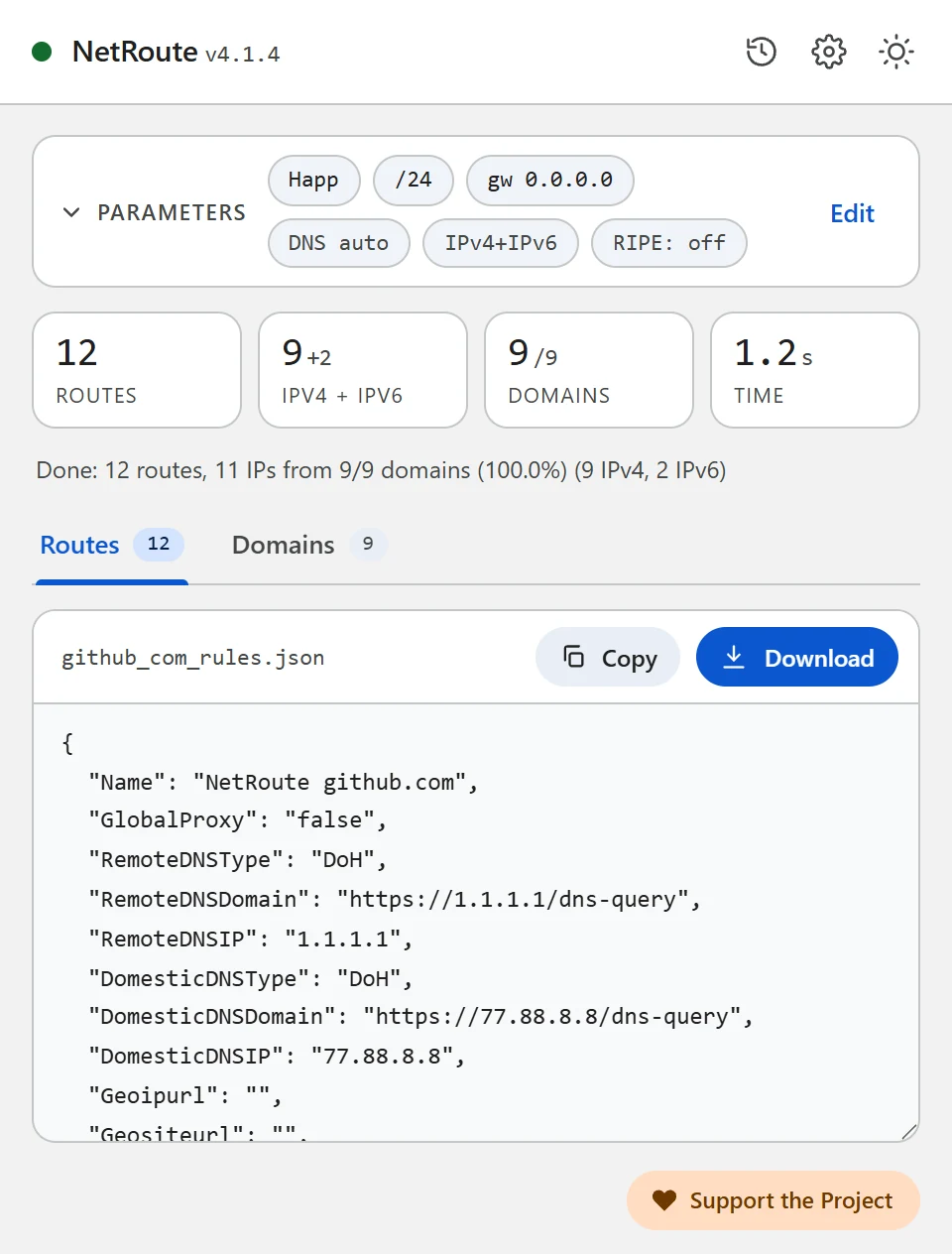
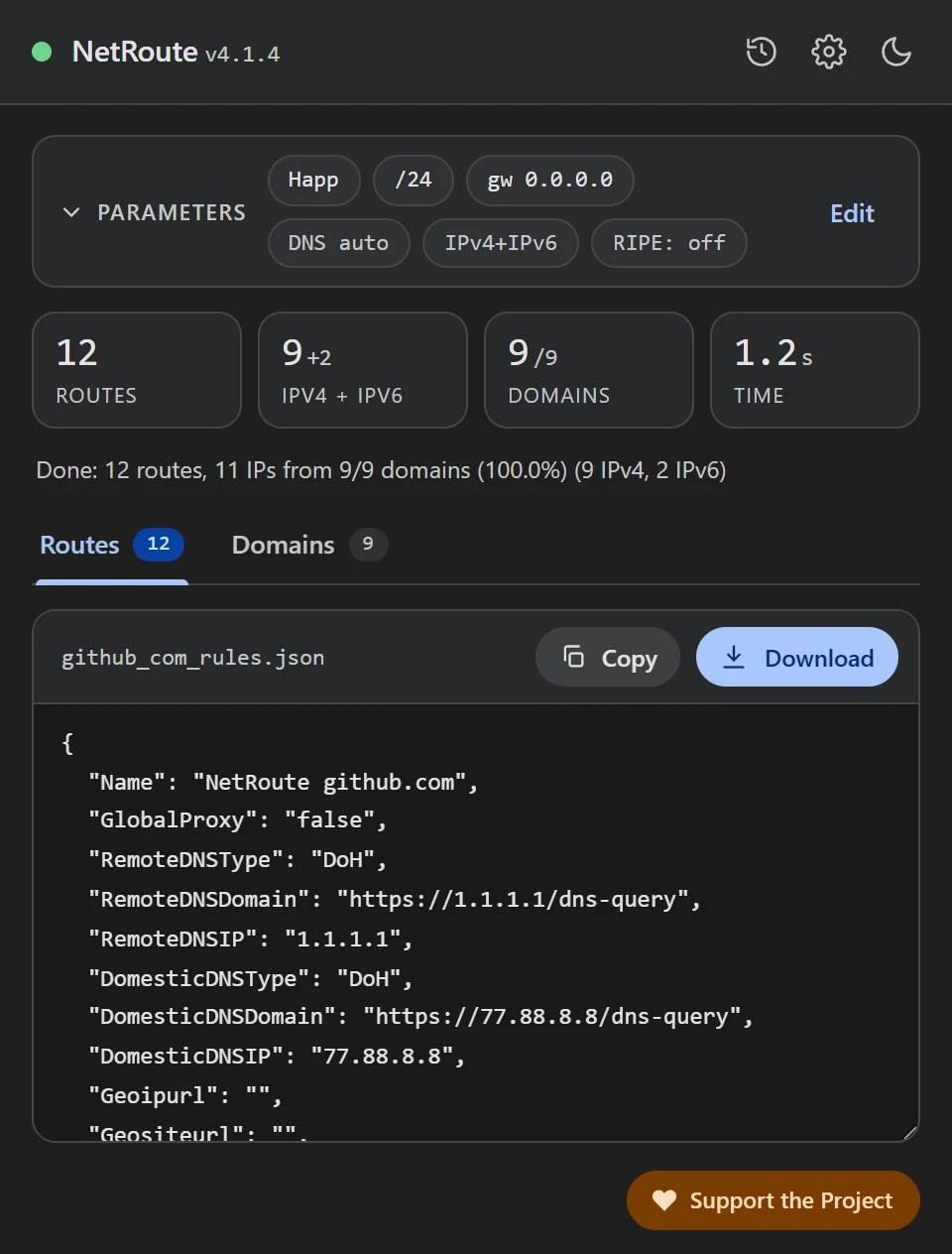
A Happ routing profile is a JSON document with DNS and geo-file settings and six lists: what goes through the proxy, what goes direct and what is blocked — separately for domains and for addresses. NetRoute fills the proxy lists and leaves the rest at values Happ accepts by default:
{
  "Name": "NetRoute github.com",
  "GlobalProxy": "false",
  "RemoteDNSType": "DoH",
  "RemoteDNSDomain": "https://1.1.1.1/dns-query",
  "RemoteDNSIP": "1.1.1.1",
  "DomesticDNSType": "DoH",
  "DomesticDNSDomain": "https://77.88.8.8/dns-query",
  "DomesticDNSIP": "77.88.8.8",
  "Geoipurl": "",
  "Geositeurl": "",
  "LastUpdated": "1760572800",
  "DnsHosts": {},
  "RouteOrder": "block-proxy-direct",
  "DirectSites": [],
  "DirectIp": ["geoip:private"],
  "ProxySites": ["domain:github.com", "domain:githubusercontent.com"],
  "ProxyIp": ["140.82.112.0/20", "185.199.108.0/22", "2606:50c0::/32"],
  "BlockSites": [],
  "BlockIp": [],
  "DomainStrategy": "IPIfNonMatch",
  "FakeDNS": "false"
}
What the fields mean, per the Happ documentation:
GlobalProxy— withtrueall traffic goes through the proxy by default, withfalseit goes direct; the same value sets the exit for everything that matched no rule. NetRoute setsfalse: only the listed sites go through the proxy.ProxySites/ProxyIp— domains and addresses that go through the proxy. Domains are written asdomain:name— per the Xray documentation that is the domain and all its subdomains; the list is folded,www.dropped. The addresses are the same aggregated networks NetRoute emits as router routes, IPv4 and IPv6.DirectSites/DirectIpandBlockSites/BlockIp— direct and blocked; NetRoute leaves only private addresses direct (geoip:private).RouteOrder— the order in which the rules are checked: block first, then proxy, then direct.DomainStrategy— the Xray strategy:IPIfNonMatchresolves a domain to an address only when no rule matched by name.RemoteDNS*/DomesticDNS*— DNS for the sites behind the proxy and for the rest;DoHis DNS-over-HTTPS. Change the values in the file before importing if you want other resolvers.Geoipurl/Geositeurl— links to geoip.dat and geosite.dat; Happ fills empty values from its default profile.LastUpdated— a Unix date; the profile is updated when it is higher than the previous one. NetRoute writes the generation time.DnsHosts— manual “domain: IP” mappings, like a hosts file; empty in NetRoute’s profile.
What you need
- The Happ app with a server added (Windows, macOS, Linux, iOS, Android, Android TV or Apple TV)
- The NetRoute extension in Chrome
- A way to base64-encode a file — every system has a command for it, examples below
Step 1. Generate the profile in NetRoute
- Open the website in Chrome and reload the page so the extension’s sniffer sees the background requests
- Start NetRoute
- Under Target OS pick Happ — the “Proxy clients” group
- The Gateway IP and Device fields do not affect this format
- Click Analyze website
- On the Domains tab untick what you do not need — counters, ad networks, third-party CDNs; the profile updates at once
- Click Download: the file is named after the site, for example
github_com_rules.json
Step 2. Build the happ://routing/… link
Per the Happ documentation a profile is added with a link in which {base64} is the JSON profile converted to base64 text:
happ://routing/add/{base64}— adds the profile to the list;happ://routing/onadd/{base64}— adds and activates it at once, even when another profile is active.
Encode the downloaded file:
# Windows, PowerShell
[Convert]::ToBase64String([IO.File]::ReadAllBytes("github_com_rules.json"))

# macOS
base64 -i github_com_rules.json

# Linux
base64 -w0 github_com_rules.json
Prepend happ://routing/onadd/ to the result — one line, no spaces or line breaks. The link gets long; that is normal.
Step 3. Add the link to Happ
Per the Happ documentation links are accepted in three ways — copied from the clipboard, scanned from a QR code and as a deeplink:
- Copy the built link to the clipboard
- Open Happ and tap + in the upper-right corner of the main screen
- Add the link from the clipboard. To a phone the link is easiest to pass as a QR code or to open as a deeplink — the system offers to open it in Happ
- With
onaddthe profile is already active; withaddselect it in the list of routing profiles - Reconnect: per the documentation profile changes apply after Reconnect
Step 4. Check
Open the site the profile was built for — it should open through the proxy, while other sites go direct (GlobalProxy: false). If it is the other way round, check which routing profile is active in Happ and that you reconnected after the import.
Common problems
The link is not accepted
Check that the base64 is a single line without breaks (on Linux that needs the -w0 switch) and that it is preceded by exactly happ://routing/onadd/ or happ://routing/add/.
The profile was added but nothing changed
Happ applies a changed profile on reconnect. With an add link the profile also has to be selected as active.
The site pulls data from other domains
They should be visible on the Domains tab in NetRoute — the extension collects domains from the page and from its background requests. Walk through the site before scanning (sign in, open a video) so the deferred requests end up in the profile too. Several sites in one profile — the URL list button next to the analyze button: the file is named bulk_N_rules.json.
A profile in a subscription
Per the Happ documentation a JSON subscription may carry strictly 0 or 1 routing profile, and a profile link can be passed in the routing header or right in the subscription body — handy when you hand out settings to several devices.
DNS and leaks
The profile sets two DNS servers: RemoteDNS for the sites behind the proxy and DomesticDNS for the rest — both over DNS-over-HTTPS (Cloudflare and Yandex in NetRoute’s file). Change them in the JSON before encoding if you need other resolvers. The browser’s queries still go wherever its own DNS is configured: in Chrome turn off “Use secure DNS” or point it at a resolver you trust, otherwise Chrome resolves names past the client.
Check: dnsleaktest.com with Happ on should show the resolver from the profile, not the ISP’s.
Example Configuration File
Ready-to-edit template. Replace the example domains and networks with output from NetRoute for your target sites.
happ-routing.json— a Happ routing profile with theProxySitesandProxyIplists
{
  "Name": "NetRoute github.com",
  "GlobalProxy": "false",
  "RemoteDNSType": "DoH",
  "RemoteDNSDomain": "https://1.1.1.1/dns-query",
  "RemoteDNSIP": "1.1.1.1",
  "DomesticDNSType": "DoH",
  "DomesticDNSDomain": "https://77.88.8.8/dns-query",
  "DomesticDNSIP": "77.88.8.8",
  "Geoipurl": "",
  "Geositeurl": "",
  "LastUpdated": "1760572800",
  "DnsHosts": {},
  "RouteOrder": "block-proxy-direct",
  "DirectSites": [],
  "DirectIp": [
    "geoip:private"
  ],
  "ProxySites": [
    "domain:avatars.githubusercontent.com",
    "domain:github.com",
    "domain:github.githubassets.com"
  ],
  "ProxyIp": [
    "140.82.112.0/20",
    "185.199.108.0/22",
    "2606:50c0::/32"
  ],
  "BlockSites": [],
  "BlockIp": [],
  "DomainStrategy": "IPIfNonMatch",
  "FakeDNS": "false"
}
Hint: the text formats download with a comment header. Untick “Include comments in exported files” in the NetRoute options to get the rules alone; the JSON formats never carry comments.
All example configs on GitHub →
Official Documentation
- Happ: Routing — the add and onadd links, profile fields
- Happ: Adding Configuration/Subscription — clipboard, QR code, deeplink
- Happ: Examples of links and parameters
- Xray: Routing — the domain: form and domain strategies (zh)
Related Guides
- Keenetic — routes from a
.batupload - MikroTik —
.rscscript import into RouterOS - WireGuard — split tunneling via
AllowedIPs - Linux —
ip routeshell script - OpenVPN —
routedirectives in the client config - sing-box / Hiddify — rule-set for sing-box and Hiddify
- Xray / 3X-UI / v2rayN — routing.rules for Xray-core, 3X-UI and v2rayN
- AmneziaVPN — site list for split tunneling
Ready to try?
NetRoute — a free Chrome extension to generate routes from any website.
Install Extension